In this article we explain how to choose the best CPU cooler for your needs. When choosing a cooler there are some important things to consider.
Say you're putting together your own computer and you've bought a new CPU, great. The problem is, more often than not that CPU has come equipped with a OEM (Original Equipment Manufacturer) CPU cooler. That means that it's a heatsink recommended by the CPU manufacturer, but it's usually a cheap one that only just does its job.
Think about it, why would the CPU company include a top of the range cooler when it doesn't have to? The cooler's they typically provide will keep your CPU cool, but it will do far from a great job.
Most stock CPU coolers are made with cheap aluminium instead of the better performing copper heatsinks. As most of us know, copper is a lot better for heat dissipation on air cooling. So if you're looking for really good cooling and less noise for your CPU, you will need to invest in an aftermarket cooling system.
There are a few important factors to consider when choosing the best CPU cooler for your system, such as whether you will be overclocking or not, and whether you have enough space around the CPU socket. You also need to take into account whether your computer case has enough airflow to begin with, and obviously how much you're willing to spend comes into the picture too.
As with a lot of things, with CPU coolers you pretty much get what you pay for. The larger and more expensive ones are generally going to provide better cooling. Try to find one with heatpipe technology too, as that really helps. And remember, the more copper on it the better!
You need to know what socket CPU cooler you will need, of course. You can't just buy any cooler and pray that it works, you need to choose one that will work with your system.
Some of the top brands for cpu coolers would have to be Zalman, Thermaltake, Arctic Cooling, VapoChill, and Thermalright. You can browse a range of the best cpu coolers as the lowest prices hereicon.
Thursday, October 29, 2009

Sunday, June 28, 2009
How to Buy a Desktop PC for browsing the web,check email and juggle word document
Buying a new computer is no small task. Making the right choice requires more than just knowing how fast a CPU you need or how big a hard drive you want--you need to have a good idea of how you'll use your new rig. Let PC World's experts break the details down for you.
Most people buy a PC to browse the Web, to check and send e-mail, and to juggle the occasional Word document or spreadsheet. Today, even the least-expensive, lowest-of-the-low-end system can perform any of those jobs admirably--and do it for well under $1000. See our Top Value Business Desktop PCs chart for our current picks.
I advice you these PC
1. Dell Optiplex 740 Minitower Desktop Computer (Athlon 64 3800+ 2.40GHz/80GB/512MB)
2. Dell Vostro 200CPU: 1.86-GHz Core 2 Duo E6320, Graphics Adapter: nVidia GeForce 8300GS, Monitor Model: Dell E207WFP, Total HD Size (GB): 160GBHardDrive
3. HP rp5700 LLDT CPU: 1.8-GHz Pentium Dual-Core E2160, Graphics Adapter: Integrated Intel GMA 3000, Monitor Model: LP2065, Total HD Size (GB): 160GB Hard Drive, WorldBench 6 Word Score: Very Good
4. Compaq dc5750 Desktop (2.00GHz Athlon 64 X2 3800+, 1GB DDR2, 80GB, DVD/CDRW, Windows Vista Business)
Most people buy a PC to browse the Web, to check and send e-mail, and to juggle the occasional Word document or spreadsheet. Today, even the least-expensive, lowest-of-the-low-end system can perform any of those jobs admirably--and do it for well under $1000. See our Top Value Business Desktop PCs chart for our current picks.
I advice you these PC
1. Dell Optiplex 740 Minitower Desktop Computer (Athlon 64 3800+ 2.40GHz/80GB/512MB)
2. Dell Vostro 200CPU: 1.86-GHz Core 2 Duo E6320, Graphics Adapter: nVidia GeForce 8300GS, Monitor Model: Dell E207WFP, Total HD Size (GB): 160GBHardDrive
3. HP rp5700 LLDT CPU: 1.8-GHz Pentium Dual-Core E2160, Graphics Adapter: Integrated Intel GMA 3000, Monitor Model: LP2065, Total HD Size (GB): 160GB Hard Drive, WorldBench 6 Word Score: Very Good
4. Compaq dc5750 Desktop (2.00GHz Athlon 64 X2 3800+, 1GB DDR2, 80GB, DVD/CDRW, Windows Vista Business)
Tuesday, June 23, 2009
What's new in Windows 7 part7
View Available Network (VAN)
Windows 7 makes viewing and connecting to all of your networks simple and consistent. You'll always have one-click access to available networks, regardless of whether those networks are based on Wi-Fi, mobile broadband, dial-up, or your corporate VPN.

View Available Network (VAN)
What's new in Windows 7 part6
HomeGroup
Today, you may have a network in your home that you use to share an internet connection. But it can be hard to share other things, like files and printers. Do you have one or more computers in your home but only one printer? If you’re like most people, when you need to print a file that’s on your laptop in your bedroom on the printer in your den, you probably e-mail the file from one PC to another or transfer it on a USB drive. And if you need to find a file but don’t know which computer it’s stored on, chances are you’re in for a long night as you traipse from PC to PC and search each one.
HomeGroup, a new feature in Windows 7, makes connecting the computers in your home a painless process. HomeGroup is set up automatically when you add the first PC running Windows 7 to your home network. Adding more PCs running Windows 7 to the HomeGroup is an easy process. You can specify exactly what you want to share from each PC with all the PCs in the HomeGroup. Then, sharing files across the various PCs in your home—and many other devices—is as easy as if all your data were on a single hard drive. So you can store digital photos on a computer in your den and easily access them from a laptop anywhere in your home. Similarly, once in a HomeGroup, the printer in your den is shared automatically with all of the PCs in your home.

Decide whether to join an existing network

Easily explore content on other devices on the network
What's new in Windows 7 part5
Windows Search
Looking for something on your PC? What’s your first instinct? If you use the web a lot, you probably start by looking around for a search box. Now, you can find things on your computer the same way. Introduced with Windows Vista, Windows Search helps you find virtually anything on your PC quickly and easily. Windows 7 also makes search results more relevant and easier to understand.
Looking for a file, e-mail, or application? While you can easily look through folders and menus, there’s an even faster way. Just click on the Start button and you’ll see a search box at the bottom of the Start menu. Just enter a word or few letters in the name or file you want, and you’ll get an organized list of results.
Windows 7 uses libraries to show all content of a particular type in one spot. Say you’ve got photos in several locations on your PC. A lot will be in your Photos folder. But you might have some in documents folders too. Your photos library makes it easy for you to browse and use all your photos, no matter where they are on your PC.
By collecting things into a single view, libraries make it simpler to find what you’re looking for. They’re even more powerful with Windows Search. You can search your Libraries using filters to customize your search. For example, when you’re looking for music you can search by album. Or search for photos by the date they were taken. You can go to your Documents Library, click on authors, and see all the documents on your computer sorted by author name.

Windows Search
ESET anti virus nod32 and smart security

ESET Smart Security 4
ESET Smart Security adds a firewall and antispam technology to ESET NOD32 Antivirus, protecting your family from Internet threats while blocking annoying junk email. ESET Smart Security 4 sports an easier to use firewall and delivers smarter antispam for Outlook, Outlook Express, Thunderbird and other popular mail clients.


ESET NOD32 Antivirus 4
The fastest, most effective technology available to protect you from viruses and spyware without slowing you down while you work or play. ESET NOD32 Antivirus 4 ThreatSense scanner is even smarter and faster, while adding removable media security, new diagnostic and recovery tools, and more advanced heuristics.
Should i use kaspersky internet security and kasperkey anti virus
Kaspersky Anti-Virus 2009
has everything you need for a safe and secure Internet experience. Does not require installation of any additional software to protect your PC. provides the basic tools needed to protect your PC. Installation of a separate firewall and anti-spam filter is recommended.
Kaspersky Anti-Virus 2009
provides the basic tools needed to protect your PC. Installation of a separate firewall and anti-spam filter is recommended.
If you...
* visit a wide variety of sites everyday
* communicate a lot via email and instant messengers
* bank, invest or shop online
* keep up-to-date with the latest software and programs and download them on a regular basis
* want to control your children’s use of the Internet
* are fed up of the amount of spam you receive
…then Kaspersky Internet Security 2009 is the best product for you!
But if you
* already have a firewall application that you prefer
* use an email program that has a spam filter, or you don't receive a lot of spam
* use safe practices when using the Internet
* do not need Parental Control
…then Kaspersky Anti-Virus 2009 is the best product for you!
has everything you need for a safe and secure Internet experience. Does not require installation of any additional software to protect your PC. provides the basic tools needed to protect your PC. Installation of a separate firewall and anti-spam filter is recommended.
Kaspersky Anti-Virus 2009
provides the basic tools needed to protect your PC. Installation of a separate firewall and anti-spam filter is recommended.
If you...
* visit a wide variety of sites everyday
* communicate a lot via email and instant messengers
* bank, invest or shop online
* keep up-to-date with the latest software and programs and download them on a regular basis
* want to control your children’s use of the Internet
* are fed up of the amount of spam you receive
…then Kaspersky Internet Security 2009 is the best product for you!
But if you
* already have a firewall application that you prefer
* use an email program that has a spam filter, or you don't receive a lot of spam
* use safe practices when using the Internet
* do not need Parental Control
…then Kaspersky Anti-Virus 2009 is the best product for you!
Tuesday, June 16, 2009
What's new in Windows 7 part4

Better device management
One of the great things about PCs is how they let us use such a wide array of devices. In the past, you had to use several different screens to manage different types of devices. But With Windows 7, you'll use a single Devices and Printers screen to connect, manage, and use whatever printers, phones, and other devices you have on-hand.
What's new in Windows 7 part3

Desktop enhancements
Windows 7 simplifies how you work with the windows on your desktop. You'll have more intuitive ways to open, close, resize, and arrange them.
With Windows 7, it’s easier to do things you do all of the time. For example, before, when you wanted to compare two open windows, you had to manually resize your open windows to show them side by side. With Snaps, you can simply grab a window and pull it to either side edge of the screen to fill half the screen. Snap windows to both sides, and it’s easier than ever to compare those windows.
Another thing you may want to do is quickly see your gadgets or grab a file from your desktop. To see your desktop just move your mouse to the lower right corner of your desktop. That'll make all the open Windows transparent—so your desktop is immediately visible. Want to get all but one window out of your way? Grab the top of that window, shake it and all the other open windows will minimize to the taskbar. Shake the window again, and they’ll all come back.
What's new in Windows 7 part2

Jump Lists
With Windows 7, we focused on keeping the things you use most right in front of you. One example: The new Jump List feature. It's a handy way to quickly reach the files you've been working with. To see the files you've used recently, just right click on the icon on your taskbar. So right-clicking on the Word icon will show your most recent Word documents. Plus, if there are other files you want to keep handy, you can just pin them to the Jump List so they’ll always appear. That way, the documents you’re likely to want are just a couple clicks away.
Some programs, such as Windows Media Player, can pre-populate their Jump Lists with common tasks. For example, on the Jump List for Windows Media Player, you’ll see options to Play All Music or resume your last playlist. On the Jump List for Internet Explorer, you’ll see frequently and recently viewed websites. With some programs, you’ll even have quick access to tasks that, in the past, were only available from within the program, such as composing a new e-mail message.
What's new in Windows 7 part1
Improved taskbar
Jump Lists
Desktop enhancements
Windows Search
Internet Explorer 8
Better device management
HomeGroup
View Available Network (VAN)
Improved taskbar and full-screen previews
The taskbar at the bottom of your screen is what you use to launch programs and switch between them when they're open. In Windows 7 you can pin any program to the taskbar so it’s always just a click away, and you can rearrange the icons on the taskbar just by clicking and dragging. We’ve made the icons considerably bigger, too, so they’re easier to use. Hover over the icons and you’ll see thumbnails of every file or window that open in that program, and if you hover over the thumbnail, you’ll see a full-screen preview of that window. Move the cursor off the thumbnail and the full-screen preview disappears.
New Windows 7 taskbar
Jump Lists
Desktop enhancements
Windows Search
Internet Explorer 8
Better device management
HomeGroup
View Available Network (VAN)
Improved taskbar and full-screen previews
The taskbar at the bottom of your screen is what you use to launch programs and switch between them when they're open. In Windows 7 you can pin any program to the taskbar so it’s always just a click away, and you can rearrange the icons on the taskbar just by clicking and dragging. We’ve made the icons considerably bigger, too, so they’re easier to use. Hover over the icons and you’ll see thumbnails of every file or window that open in that program, and if you hover over the thumbnail, you’ll see a full-screen preview of that window. Move the cursor off the thumbnail and the full-screen preview disappears.
New Windows 7 taskbar

Monday, June 15, 2009
What Mac book can do?
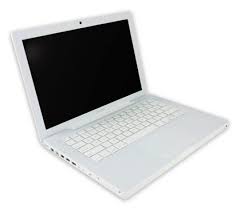
Overview
1.MacBook has more than enough power to get you through your day - at home, at school or at work - thanks to its impressive Intel Core 2 Duo processor.
2.MacBook comes standard with a 160GB hard drive, providing plenty of room for music, photos, videos and more. Or upgrade to 500GB of storage.
3.Powerful NVIDIA GeForce 9400M graphics provide outstanding performance for playing the latest 3D games, and creating and enjoying media with iLife.
4.Organise your photos by faces and places, make movies in no time, learn to play music and more. All with the new iLife ’09 and Mac OS X Leopard.
Netbook and notebook How different?

A netbook is a small portable laptop computer designed for wireless communication and access to the Internet.
Notebook is bigger than netbook but it's also have much performance than netbook too.
Sunday, June 14, 2009
What is Centrino 2?
Centrino 2 is new technology for notebook invented by Intel
It contains 3 main Point
1.CPU 45nm faster than centrino 1
2.WIFI is wider
3.Chipset GM45 and PM45


Advancing all vectors of mobility
• Intel’s best-performing notebook technology1
• Designed to improve battery life
• Faster 802.11n and more options to connect wirelessly2
• Full range of notebook designs
• For consumers, native Blu-ray* playback capabilities
• For business, next level of manageability and security
lenovoy450/p7450
we will look at the spec of this notebook first
CPU P7450 2.13GHZ
RAM DDR3 2GB
GPU GT130
HD 500MB
WIFI 5100
CHIPSET intel pm45
This notebook is so perfect that you can work,play game,surf internet
or do about graphic design but It has something disadvantange thai is
It's so hot when you use very long time.But it's not the big problems
 look at the spec of this notebook first
CPU P7450 2.13GHZ
RAM DDR3 2GB
GPU GT130
HD 500MB
WIFI 5100
CHIPSET intel pm45
This notebook is so perfect that you can work,play game,surf internet
or do about graphic design but It has something disadvantange thai is
It's so hot when you use very long time.But it's not the big problems
welcome to computer blog
welcome to computer blog
my blog is about computer knowledge and IT
I would like to update computer today which you must know
my blog is about computer knowledge and IT
I would like to update computer today which you must know
Subscribe to:
Posts (Atom)